

- Improve Dev Experience
- AI Assistant
Improve Dev Experience
AI Assistant
Add AI-powered chat to your docs that answers questions, cites sources, and generates code examples
The AI Assistant provides intelligent, conversational support for your documentation users. It’s powered by your Knowledge Base, which indexes your documentation and custom content to deliver accurate, contextual answers.
Before using the assistant, you must first create a Knowledge Base from your documentation files.
About the assistant
The assistant answers questions about your documentation through natural language queries. It is embedded directly in your documentation site, so users can find answers quickly and succeed with your product.
The assistant uses agentic RAG (retrieval-augmented generation) powered by your knowledge base. When users ask questions, the assistant:
- Searches and retrieves relevant content from your documentation to provide accurate answers.
- Cites sources and provides navigable links to take users directly to referenced pages.
- Generates copyable code examples to help users implement solutions from your documentation.
Each message sent to the assistant counts toward your plan’s message allowance. If you exceed your allowance, additional messages incur overage charges. You can set spending limits or disable the assistant if you reach your message allowance.
You can view assistant usage through your dashboard to understand user behavior and documentation effectiveness. Export and analyze query data to help identify:
- Frequently asked questions that might need better coverage.
- Content gaps where users struggle to find answers.
- Popular topics that could benefit from additional content.
Prerequisites
Before configuring the assistant, complete the following steps:
Create your documentation
Publish your documentation files to your Docsalot site.
Set up your Knowledge Base
Navigate to the Knowledge Base tab in your dashboard and index your documentation files. See the Knowledge Base guide for detailed instructions.
Test your responses
Use the Test Chat feature in the Knowledge Base tab to verify the assistant provides accurate answers before enabling it for users.
Configure the assistant
Once your knowledge base is set up and indexed, you can configure how the assistant behaves on your documentation site.
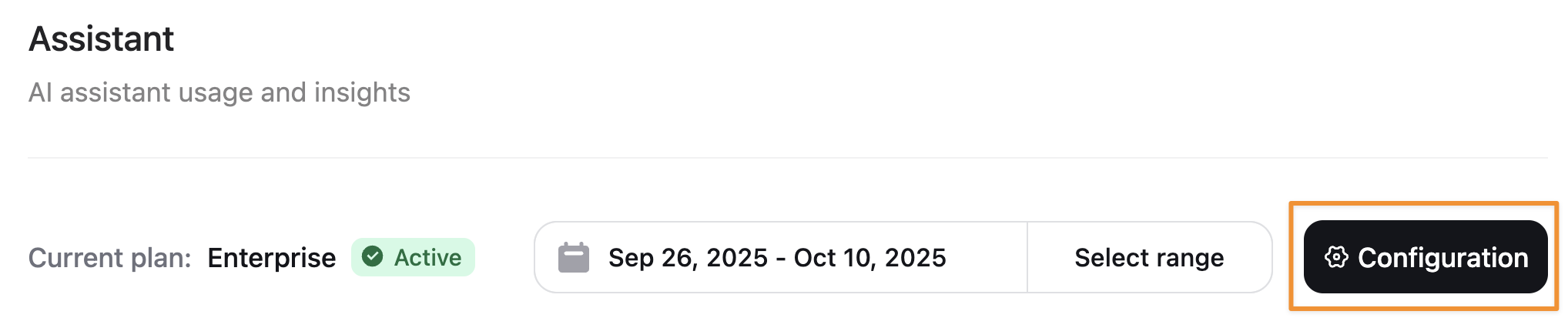
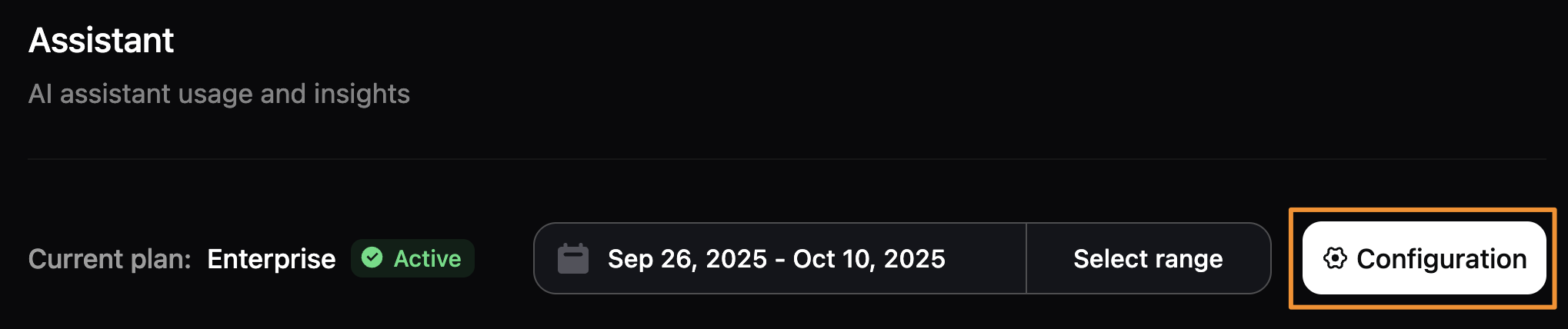
Navigate to the Knowledge Base tab in your dashboard and click Assistant Settings to enable or disable the assistant, configure response handling, add default questions, and customize the experience.
Enable or disable the assistant
Toggle the assistant status in the Assistant Settings panel to enable or disable the assistant for your documentation site.
The assistant will only work after you have indexed your documentation in the Knowledge Base. If you haven’t set up your knowledge base yet, the assistant won’t be able to answer questions.
Set deflection email
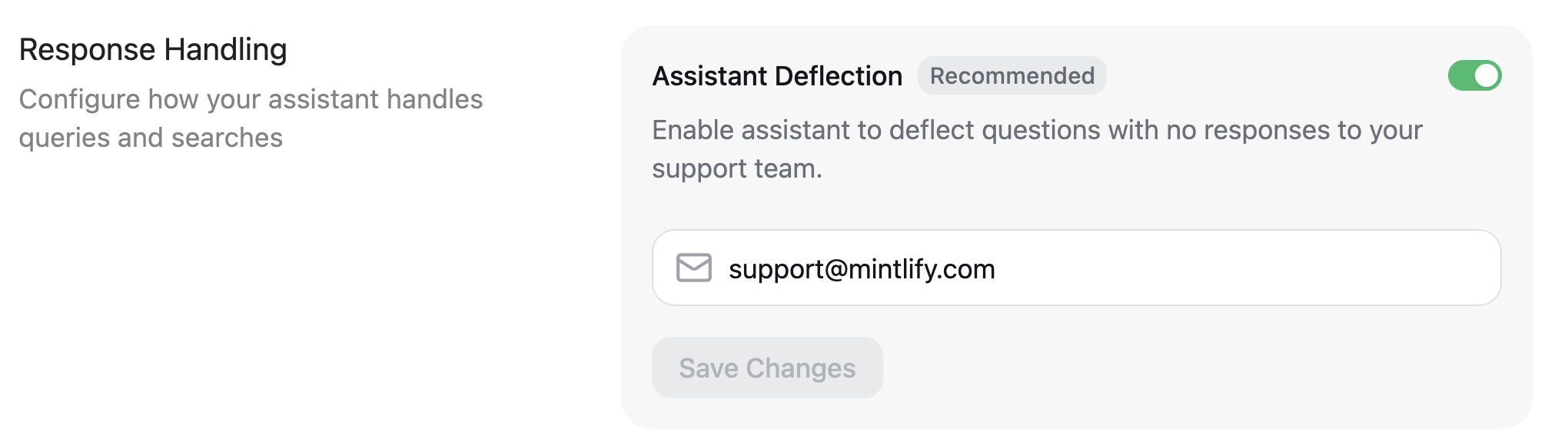
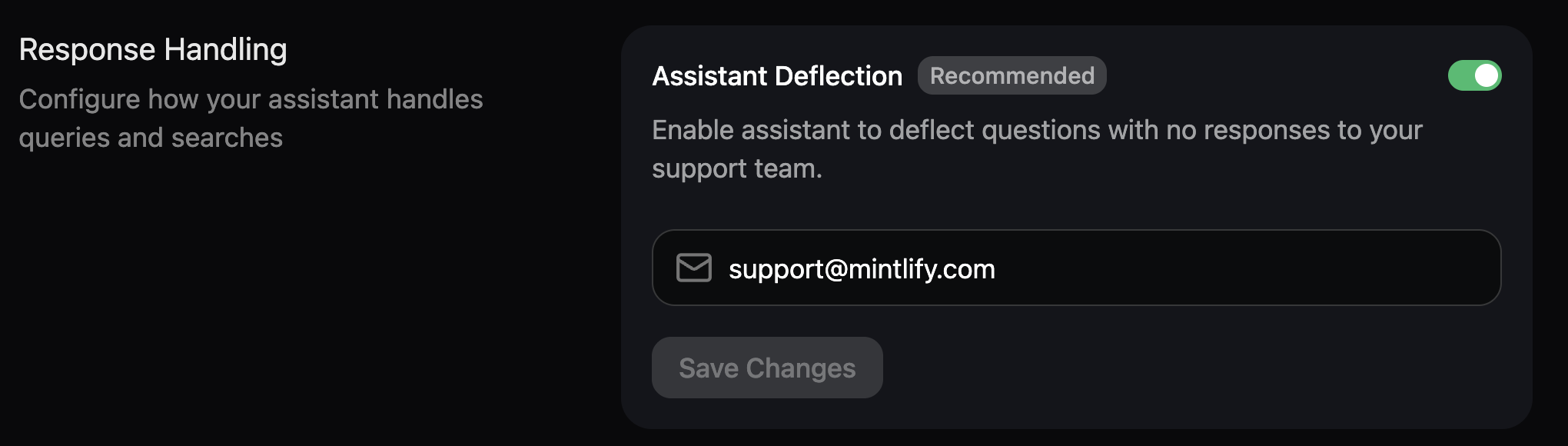
In the response handling section, enable the assistant to redirect unanswered questions to your support team. Specify an email address that the assistant provides to users who ask questions that it cannot answer.
Search sites
In the response handling section, configure sites that the assistant can search for additional context when answering questions.
- Sites must be publicly available.
- Sites that require JavaScript to load are not supported.
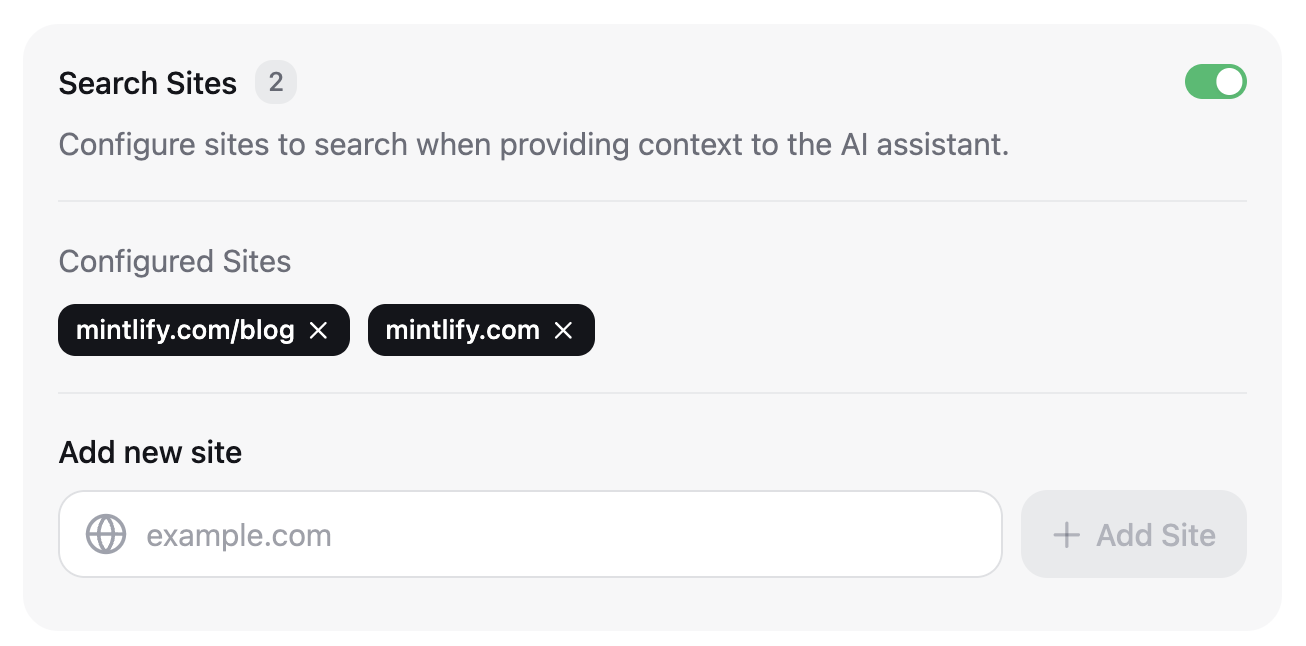
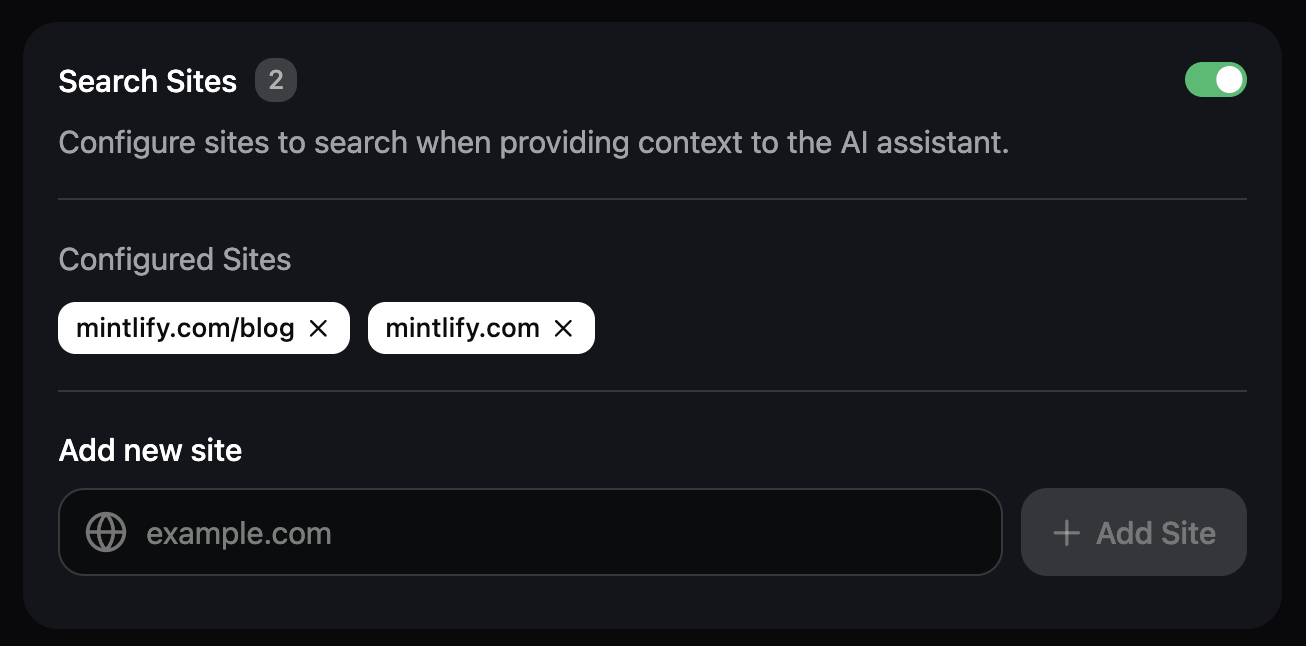
Use the following filtering syntax for more precise control over what the assistant can search:
- Domain-level filtering
example.com: Search only theexample.comdomaindocs.example.com: Search only thedocs.example.comsubdomain*.example.com: Search all subdomains ofexample.com
- Path-level filtering
docs.example.com/api: Search all pages under the/apisubpath
- Multiple patterns
- Add multiple entries to target different sections of sites
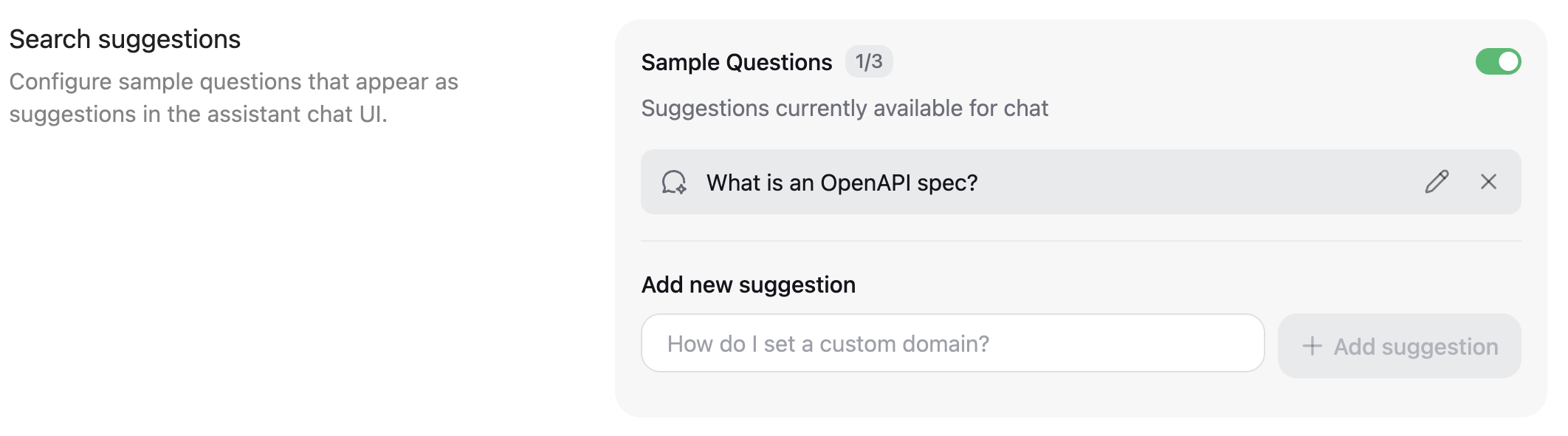
Add sample questions
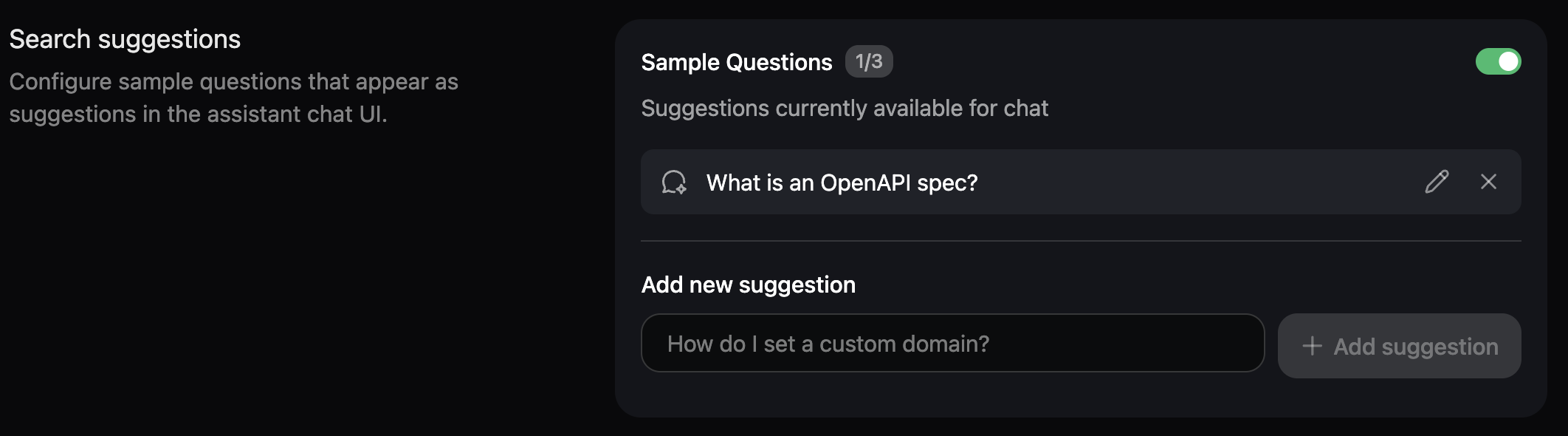
Help your users start questions with the assistant by adding sample questions. In the search suggestions section, add up to three sample questions.
Set a spend limit
Set a spend limit to control what happens if you reach your message allowance. By default, the assistant continues to answer user questions after you reach your message allowance, which incurs overages.
When you reach your spend limit, the assistant is disabled until your message allowance resets.
- Select the Billing tab.
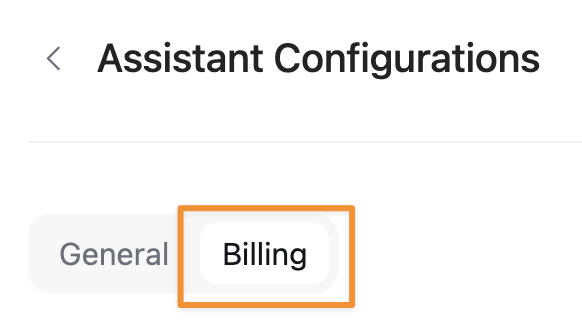
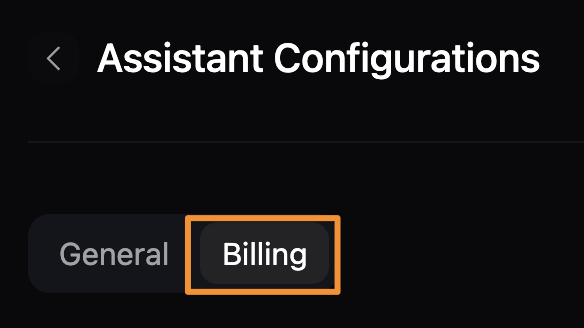
- Set a spend limit for assistant messages beyond your allowance.
- Set usage alerts to receive an email when you reach a certain percentage of your spend limit.
Use the assistant
Users have multiple ways to start a conversation with the assistant. Each method opens a chat panel on the right side of your docs. Users can ask any question and the assistant searches your documentation for an answer. If no relevant information is found, the assistant responds that it cannot answer the question.
Add the assistant as a bot to your Slack workspace or Discord server so that your community can ask questions without leaving their preferred platform.
UI placement
When the assistant is enabled, it appears in two locations: as a button next to the search bar and as a bar at the bottom of the page.
Keyboard shortcut
Open the assistant chat panel with the keyboard shortcut Command + I on macOS and Ctrl + I on Windows.
Highlight text
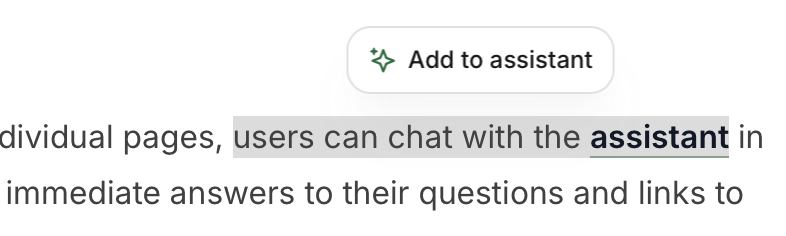
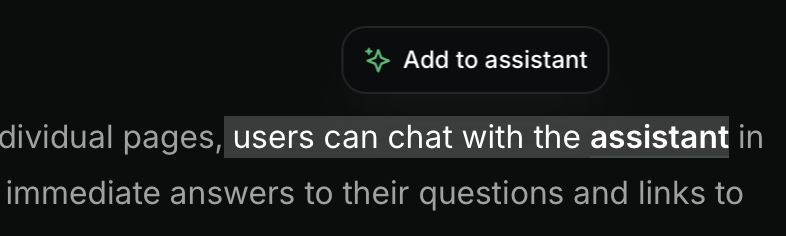
Highlight text on a page and click the Add to assistant pop up button to open the assistant chat panel and add the highlighted text as context. You can add multiple text snippets or code blocks to the assistant’s context.
Code blocks
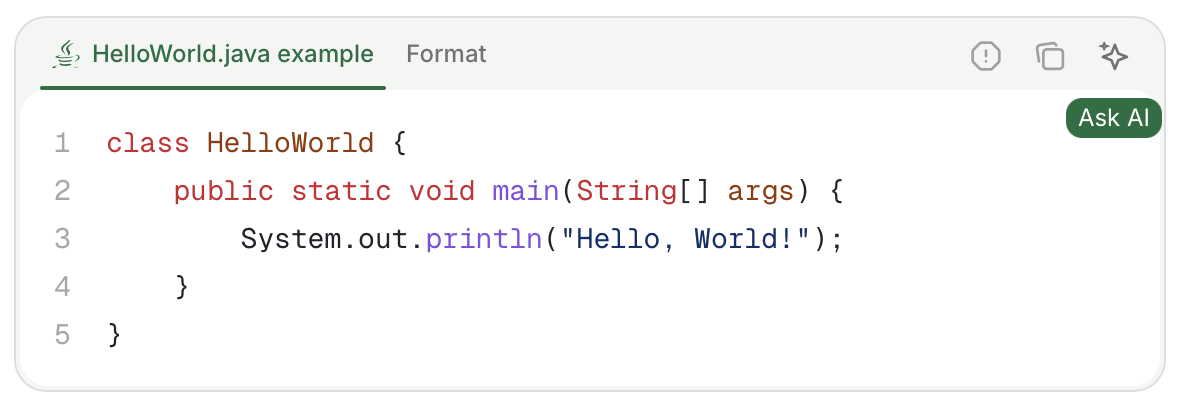
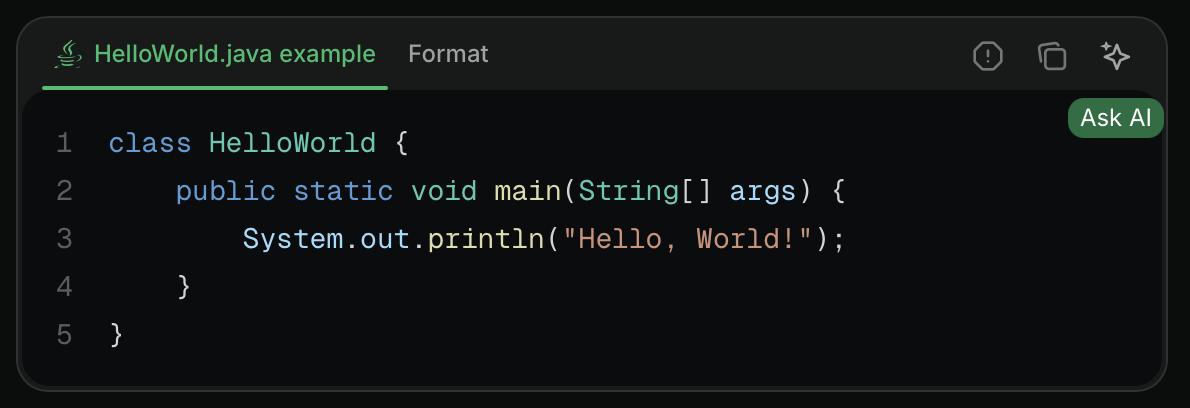
Click the Ask AI button in a code block to open the assistant chat panel and add the code block as context. You can add multiple code blocks or text snippets to the assistant’s context.
URLs
Append ?assistant=open to a URL to open the assistant when the page loads. For example, https://docsalot.dev/docs?assistant=open.
Make content AI ingestible
Structure your documentation to help the assistant provide accurate, relevant answers. Clear organization and comprehensive context benefit both human readers and AI understanding.
Structure and organization
- Use semantic markup.
- Write descriptive headings for sections.
- Create a logical information hierarchy.
- Use consistent formatting across your docs.
- Include comprehensive metadata in page frontmatter.
- Break up long blocks of text into shorter paragraphs.
Context
- Define specific terms and acronyms when first introduced.
- Provide sufficient conceptual content about features and procedures.
- Include examples and use cases.
- Cross-reference related topics.
- Add hidden pages with additional context that users don’t need, but the assistant can reference.
Export and analyze queries
Review and export queries from your dashboard to understand how people interact with your documentation and identify improvement opportunities. Some ways that analyzing queries can help you improve your documentation:
- Identify content gaps where frequent queries receive insufficient answers.
- Discover user behavior patterns and common information needs from themes and patterns in queries.
- Prioritize high-traffic pages for accuracy and quality improvements.
You can explore queries from your dashboard, but to get more powerful insights we recommend exporting a CSV file of your queries, responses, and sources to analyze with your preferred AI tool.
- Navigate to the assistant page in your dashboard.
- Click Chat history.
- Click Export to CSV.
- Analyze the exported data using your preferred tool.
Sample analysis prompts
- Summarize the most common themes of the queries.
- List any queries that had no sources cited.
- Find patterns in unsuccessful interactions.
Assistant insights
Use assistant insights to understand how users interact with your documentation through two views: categories and chat history.
Categories
The categories tab uses LLMs to automatically categorize conversations. Categories show a summary of the topic or theme, when a question was last asked about the category, and how many questions have been asked about the category over time.
Use categories to identify common topics, patterns in user needs and behavior, and areas where documentation might need expansion or clarification.
Click a category row to expand it and view related conversations grouped under that category. The expanded view displays:
- A list of conversations related to the category.
- The first user message from each conversation.
- The number of messages in each conversation thread.
Click an individual conversation to view the complete chat thread, including the user’s question, the assistant’s response, and any sources cited.
Chat history
The chat history tab displays chronological records of all assistant conversations. Click any message to view the complete chat thread, including the user’s question, the assistant’s response, and any sources cited.